You can reverse engineer an existing database to create a logical or physical data model. This helps you understand the database structure, validate designs, or analyze a specific application area without modeling the entire database.
You can reverse engineer a model in one of two ways:
-
REDB (Reverse Engineer a Database) – Reverse engineer objects directly from a live database connection.
-
RES (Reverse Engineer a Script) – Reverse engineer objects from DDL scripts.
Scenario: Reverse Engineer a Specific Business Domain
Imagine you are part of a cloud migration team moving sales data from a large enterprise database to a cloud data warehouse. Because the source system supports multiple business domains, migrating the entire database would add unnecessary complexity.
To streamline the migration, your team wants to focus only on the sales domain to extract a targeted subset of the database that includes only sales-related data structures and excludes unrelated areas such as HR and Procurement.
This approach helps your team:
-
Reduce migration scope
-
Avoid dependencies on unrelated domains
-
Improve performance during reverse engineering and migration
-
Support a faster and more controlled cloud adoption
With targeted reverse engineering, your team selectively identifies and imports only the database objects required for sales operations. Then, start by analyzing the source database and identifying relevant schemas and tables.
Reverse engineer a model using REDB
 Use REDB to reverse engineer a model that includes only the schemas and tables required for your domain.
Step 1: Select the reverse engineering source
Select the source that you want to reverse engineer.
- Select Reverse Engineer.
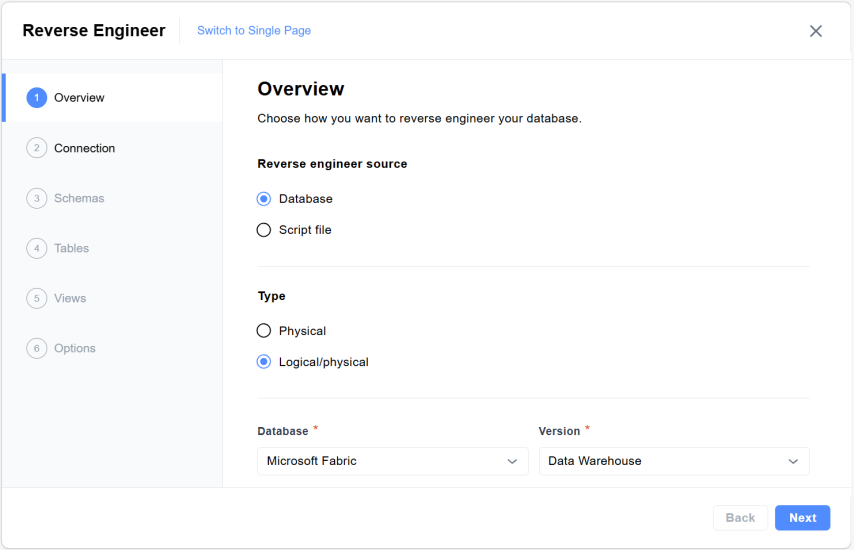
The Overview page opens.
- On the Overview page:
- Under Reverse engineer source, select Database.
- Under Type, select the model type. For example, Logical/Physical.
- From the Database and Version lists, select the database and its version to reverse engineer. For example, select Microsoft Fabric for Database and Data Warehouse for Version.
- Select Next.
Step 2: Connect to the database
Establish a secure connection to the database server.
- On the Connection page, enter the following connection parameters:
Parameters
Description
Connection Type
Specifies the type of connection required to connect to the database.
Select the type of connection as JDBC to connect to database.
Currently, only JDBC is supported.
Client ID
Unique identifier of the OAuth application used to connect to the cloud database required for databases that use OAuth authentication.
Client Secret
Confidential key associated with the Client ID used to securely obtain an access token from the OAuth provider during database connection.
Warehouse Name
Identifies the virtual compute warehouse that the database uses to execute queries.
Server Name
Host name or endpoint of the database server for reverse engineering.
Port
Network port used by the database server to accept incoming connections.
This table lists the parameters specific to the Microsoft Fabric Data Warehouse database. For more information on other supported databases, see Database Support.
- Select Connect to establish the connection.
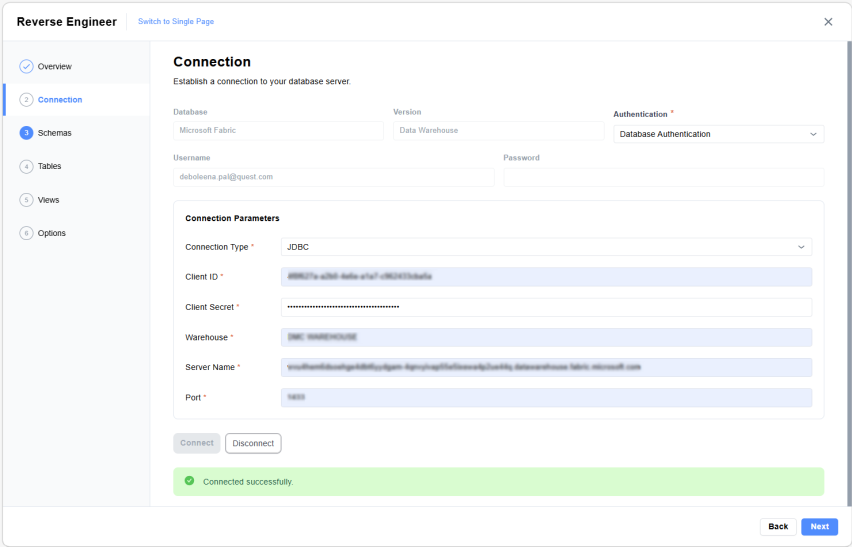
- Select Next
Step 3: Choose objects to include in your model
Narrow down to the schemas and tables relevant to your domain.
- On the Schemas tab, under Available Schemas, select the required schemas. For example, Sales_Schema.
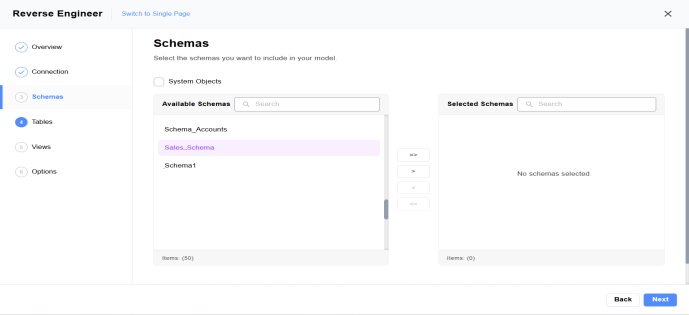
- Select
 to move the selected schema to theSelected Schemas pane. Then, select Next.
 - On the Tables tab, under Available Tables, choose the required tables. For example, Orders, OrderItems, Products, Customers, and Categories.
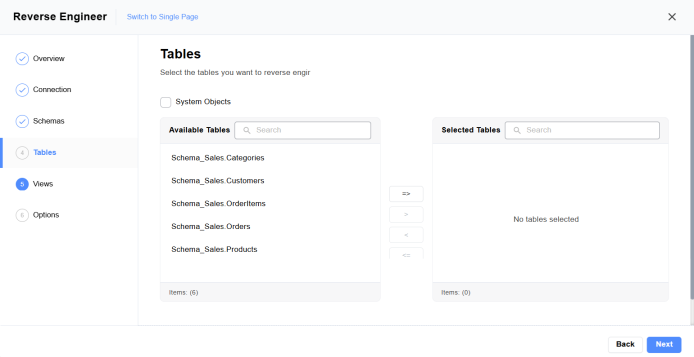
- Select
 to move them to Selected Tables pane. Then, select Next
 - On the Views tab, under Available Views, choose views to move to the Selected Views pane.
- Select to move them to Selected Views pane. Then, select Next.
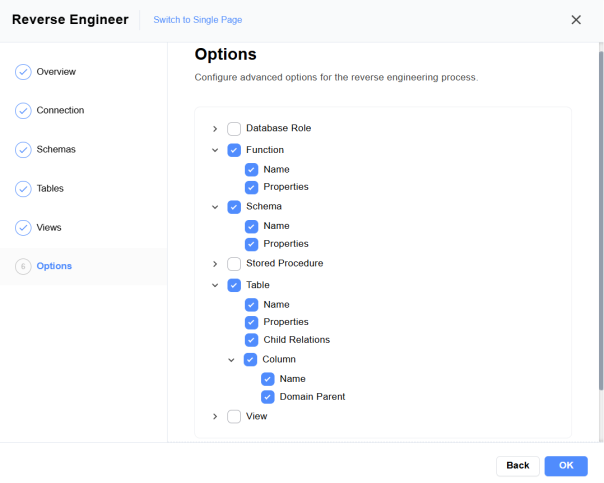
- On the Options tab, modify the selections to align with your requirements, and then select OK.
Once the process is complete, a schema is generated and a model is created based on your selections.
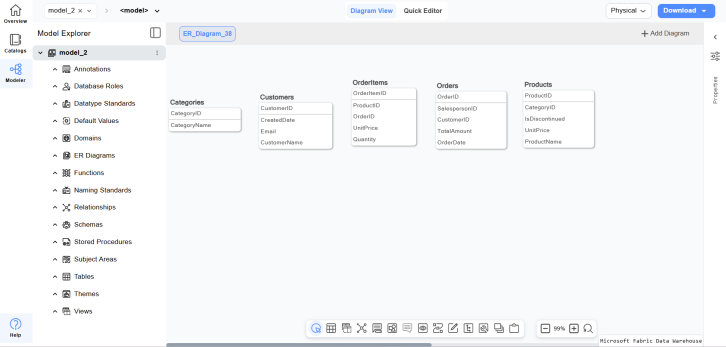
Step 4: Configure additional options
Fine-tune the generated model.
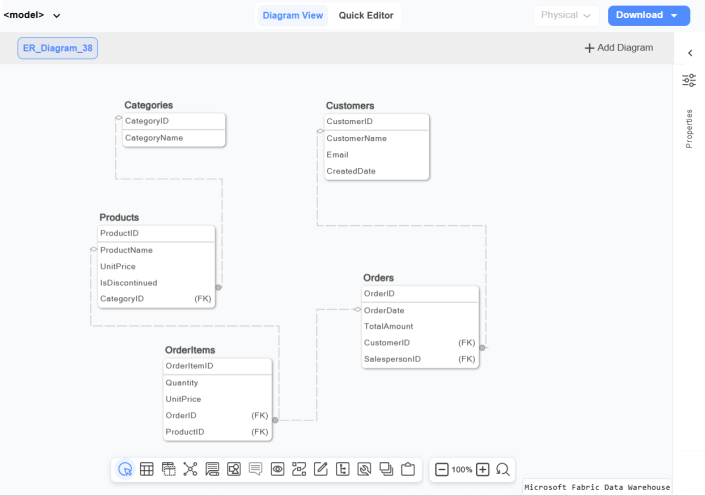
Configure additional options such as naming and relationships, based on your modeling requirements. For example, add relationships between the tables as shown in the following image.
Step 5: Review and save the generated model
After reverse engineering completes:
- You have a new model that includes only the schemas and tables you selected.
- This model excludes unrelated application areas, which reduces complexity and allows you to analyze a focused model.
Download the model in JSON, SVG, PDF, RDF/TTL Ontology, and RDF/TTF Constraint formats by selecting Download from the upper-right corner of the workspace or save the model by selecting  > Save from the toolbar when you are satisfied with it.
Reverse engineer a model using RES
Use RES to reverse engineer a model from a DDL script and include only the schemas or tables required for the domain.
Step 1: Select the reverse engineering source
Select the source you want to reverse engineer.
- Select Reverse Engineer.
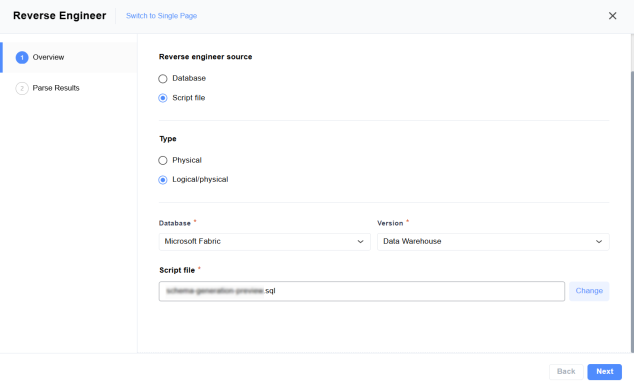
The Overview page opens.
- On the Overview page:
- Under Reverse engineer source, select Script file.
- Under Type, select the model type. For example, Logical/Physical.
- From the Database and Version lists, select the database and its version to reverse engineer. For example, select Microsoft Fabric for Database and Data Warehouse for Version.
- Select Change to browse for the script file on your system.
Note: Only SQL files are supported for RES, so you must select an SQL file.
- Select Next. The app analyzes your DDL script before it creates the model.
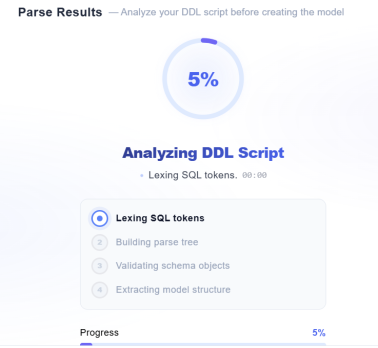
Step 2: Review parsing results
Analyze the results and generate the model.
- Review Parse Results to confirm that the script is processed successfully.
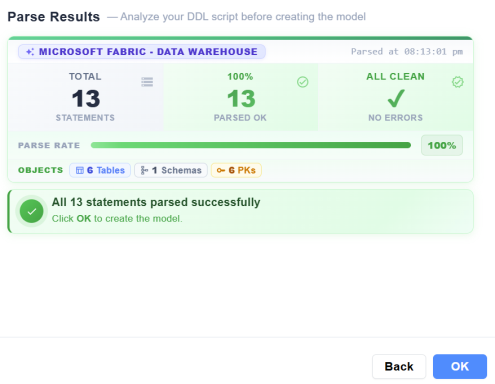
- Select OK.
The model creation process starts.
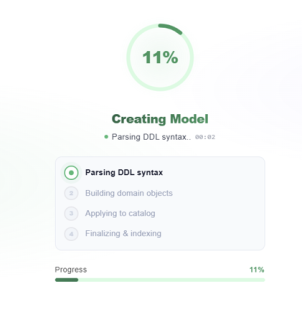
Once the process completes, your model is created.
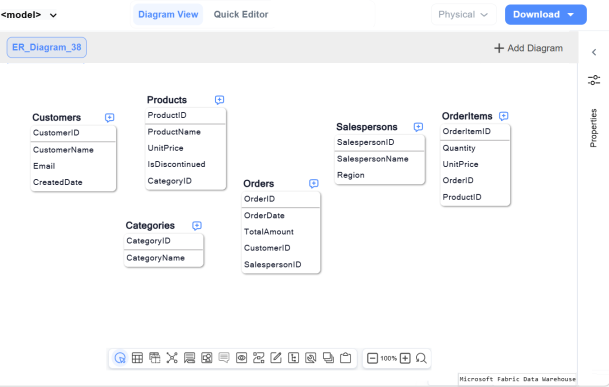
Step 3: Validate and refine the generated model
After model generation, verify it's accuracy and make any necessary adjustments.
- Review the schemas and tables.
- Modify the model as needed. For example, keep the Products, Categories, OrderItems, and Orders tables, and remove other tables and add relationships between them as shown in the following image.
- Download the model in JSON, SVG, or PDF formats by selecting Download from the top right corner of the workspace or save the model by selecting > Save from the toolbar when you are satisfied with it.
Step 4: Review the model
After reverse engineering completes:
- You have a new model that includes only the schemas and tables you selected.
- The model excludes unrelated application areas, which reduces complexity and allows you to analyze a focused model.